GO BACK

Dec 9, 2025

The Best Stape Alternatives for Facebook Conversions API

The Best Stape Alternatives for Facebook Conversions API

Introduction

Running profitable Facebook and Instagram campaigns now depends on one boring-sounding thing: getting the Facebook Conversions API right. When tracking fails, Ads Manager under-reports conversions, the algorithm gets poor signals, and good campaigns look bad on paper.

Many teams learn this the hard way. They try to move from pixel-only tracking to server-side tracking with tools like Stape, Google Tag Manager server-side, and custom cloud setups. A quick “weekend project” turns into Docker containers, DNS changes, broken tags, and late nights in debugging screens when they should be working on offers and creatives instead.

The good news is that it does not have to be this painful. A clean Meta Conversions API setup can raise Event Match Quality from mediocre numbers to 8–9 out of 10, recover up to 40% more conversion data compared to pixel-only tracking, and cut cost per purchase or lead because Meta finally sees what is really happening on the site.

This guide walks through the best Stape alternative options for the Facebook Conversions API. It compares them on ease of setup, data quality, platform support, and ongoing care. Expect clear picks for no-code websites like Webflow, Squarespace, Framer, and WordPress, as well as for Shopify and other e‑commerce stacks. By the end, it will be clear which option fits your team, your platform, and your ad goals, without another week lost inside GTM docs.

Understanding Facebook Conversions API: Why Server-Side Tracking Matters

The Facebook Conversions API (often called Facebook CAPI or Conversion API) sends events from your server to Meta instead of relying only on code inside the browser. In practice, that means your site, app, or backend posts conversion data directly to Meta’s servers through an API Facebook Ads endpoint.

The classic Meta Pixel is a browser script. It fires when a page loads or a button clicks and sends data from the visitor’s device. This client-side method is easy to install but easy to block. The Conversions API moves that work to your own server, which is not affected by browser rules in the same way.

This server-side tracking approach fixes problems that hurt data quality. Ad blockers stop pixels. iOS 14.5 and later limit tracking. Browsers delete cookies faster. Pages crash before the pixel fires. All of this means events never reach Meta when you only use the pixel. With a conversion tracking API running on the server, the same purchase can still be sent even if the visitor’s browser drops the ball.

Better data has direct business impact. When Meta sees more purchases, leads, and high-value actions, the delivery system learns faster. That means:

  • More stable cost per result

  • Stronger optimization

  • More confidence when raising budgets

Many advertisers only fix performance after they fix measurement.

“Without data, you’re just another person with an opinion.”
— W. Edwards Deming

A key metric here is Event Match Quality (EMQ). Meta scores each event from 1 to 10 based on how well it can match it to a person. Passing hashed email, phone, name, ZIP, plus Meta’s own fbp and fbc identifiers through the conversions API Meta can raise that score to 8 or higher. High EMQ usually lines up with better ROAS.

It is also important to see CAPI and the Meta Pixel as partners, not rivals. The best setups send events from both the browser and the server, then use deduplication with event_id so each conversion counts once. Done correctly, this redundant system catches more events without double-counting.

Lastly, the Meta Conversions API can be privacy-friendly when set up with consent. You still honor cookie banners, regional rules, and user choices. The difference is that you send cleaner, first-party data in a controlled way instead of relying only on fragile browser scripts.

The Stape Problem: Why Marketers Are Looking for Alternatives

Stape grew popular because it promised a ready-made way to run Google Tag Manager server-side and send events to tools like the Meta Conversion API. On paper that looks perfect. In practice, many marketers run into the same wall: the stack is built for technical teams, not for busy advertisers.

The first hurdle is the technical base. Stape centers around a server-side Google Tag Manager container. To use it well, someone needs a solid handle on GTM, tagging concepts, triggers, variables, and data layers. On top of that, they need to be comfortable with Docker-style container hosting and cloud services like Google Cloud, AWS, or Azure. For many small teams, this is already beyond reach.

The learning curve is steep. Getting a working CAPI Facebook Ads setup often takes several days. People bounce between Stape docs, GTM articles, and forum posts, trying different combinations until events finally reach the Meta Conversions API. It is common to pull in an outside consultant just to get basic purchase tracking working with EMQ that is “good enough”.

Then comes maintenance. Servers need monitoring. Cloud costs change. GTM templates get updated. A simple change in a form or checkout flow can break CAPI tracking without clear warnings. Someone has to watch logs, react to errors, and adjust tags over time. For a marketing team that just wants reliable Facebook server-side tracking, this overhead feels heavy.

Platform fit is another pain point. Stape works best when there is full control over hosting and code. That is not the case for Webflow, Framer, Squarespace, and many no-code builders. On those platforms, there is no easy path to connect GTM server-side cleanly. So marketers are left with half-setups or hacky workarounds that never feel stable.

Costs also add up. Stape itself has a fee. The cloud instance that runs the GTM server container adds another monthly bill. Many teams pay developers or agencies to set up and support the environment. All of this is time and money that could be spent on testing creatives, building better funnels, and fixing landing pages.

The biggest frustration is the lack of clarity. When events do not appear in Events Manager, it is hard to know whether the issue sits in GTM, Stape, the cloud host, or Meta’s side. Getting to an Event Match Quality above 8 without strong technical skills is hard. For large brands with analytics engineers, this stack can work well. For small and mid-sized businesses, it often feels like using a race car as a daily driver.

Key Features to Look For in a Stape Alternative

Before picking any Stape alternative for the Facebook Conversions API, it helps to have a clear checklist. That way the decision is not just about what looks shiny, but about what will give stable, accurate tracking with the least pain.

Key features to look for include:

  • Ease of implementation
    A good CAPI integration lets a marketer or founder get to “first event received” in under half an hour. That usually looks like:

    • Simple signup

    • Clear onboarding flow

    • A copy‑paste script

    • The option to jump on support with a human when needed

  • Platform compatibility
    Many teams now run sites on Webflow, Framer, or Squarespace, with shops on Shopify or WooCommerce. The right Conversion API Meta tool should support these platforms directly, not just custom-coded projects. That includes WordPress and simple HTML sites, where people want to avoid writing custom PHP or JavaScript if they can.

  • Automatic event tracking
    Modern tools can auto-detect standard events like PageView, ViewContent, AddToCart, InitiateCheckout, Purchase, Lead, and CompleteRegistration. When that works well, you do not have to build dozens of tags in GTM just to get basic API Facebook Ads data flowing.

  • Event Match Quality optimization
    A strong Meta Conversions API setup focuses on EMQ. That means collecting email, phone, name, and address from checkouts and forms, hashing them correctly, and passing Meta identifiers like fbp and fbc. The tool should be built in a way that makes EMQ scores of 8 or higher normal, not rare.

  • Reliable deduplication
    Deduplication between pixel and CAPI is easy to do wrong. The right alternative handles event_id values for standard events behind the scenes. You should not need to write extra logic just to stop double-counting. When this is built in, you can happily run both the pixel and Facebook Conversions API at the same time.

  • Transparency and troubleshooting
    Being able to see event logs, timestamps, URLs, and the exact JSON sent to Meta turns debugging from guesswork into a clear task. When something does not match or fields are missing, that view helps fix the issue quickly.

  • Privacy compliance
    Modern tools need to respect privacy. That means working with cookie banners like CookieYes, Osano, OneTrust, and similar tools. Scripts should only run after consent where required. For teams in Europe or handling EU traffic, this is not just nice to have; it is required.

  • Reliability, pricing, and support
    A good platform handles spikes in traffic, does not slow down page loads, has simple pricing without surprise cloud fees, and gives real support from real people when you get stuck.

“The goal is to turn data into information, and information into insight—a principle that applies directly to social media analytics and the metrics used to improve user engagement and campaign performance.”
— Carly Fiorina

Top Stape Alternatives for Facebook Conversions API

PixelFlow: The Simplest No-Code CAPI Setup

PixelFlow exists for one clear reason. Most marketers, founders, and agencies want the benefits of the Facebook Conversions API without the technical drama of GTM server-side, Docker, and cloud dashboards. PixelFlow is built as a no-code platform that gives you clean Facebook server-side tracking in minutes on the sites people actually use, similar to how platforms like Segment simplify the Facebook Conversions API (Actions) integration process.

Where Stape expects deep tag manager skills, PixelFlow removes that step. There is no tag manager container to tune, no Docker image to update, and no cloud instance to manage. You create an account, paste a single lightweight script into your site, connect your Meta dataset, and you are ready to send events to the Meta Conversions API.

This approach is perfect for:

  • Small and mid-sized businesses

  • Marketing teams without full-time developers

  • Webflow and Framer agencies

  • Squarespace users who have no native CAPI support

  • E‑commerce stores that need better tracking but do not want to rebuild their stack

Many teams that moved from Stape to PixelFlow describe the experience as a breath of fresh air.

On the compatibility side, PixelFlow shines on no-code platforms. It supports Webflow, Framer, Squarespace, WordPress, and plain HTML sites out of the box. That fills a major gap left by traditional tools that expect full server access. You do not have to switch platforms or host your own container just to get reliable Conversion API events.

The setup flow stays simple from start to finish:

  1. Sign up for PixelFlow.

  2. Add your site in the PixelFlow dashboard and choose the platform type.

  3. Copy the generated script.

  4. Paste it into the footer or custom code area of your site.

  5. Enter your Meta Pixel ID and Conversions API access token.

From there, PixelFlow sets up both the pixel and Facebook Conversions API side by side with built-in deduplication.

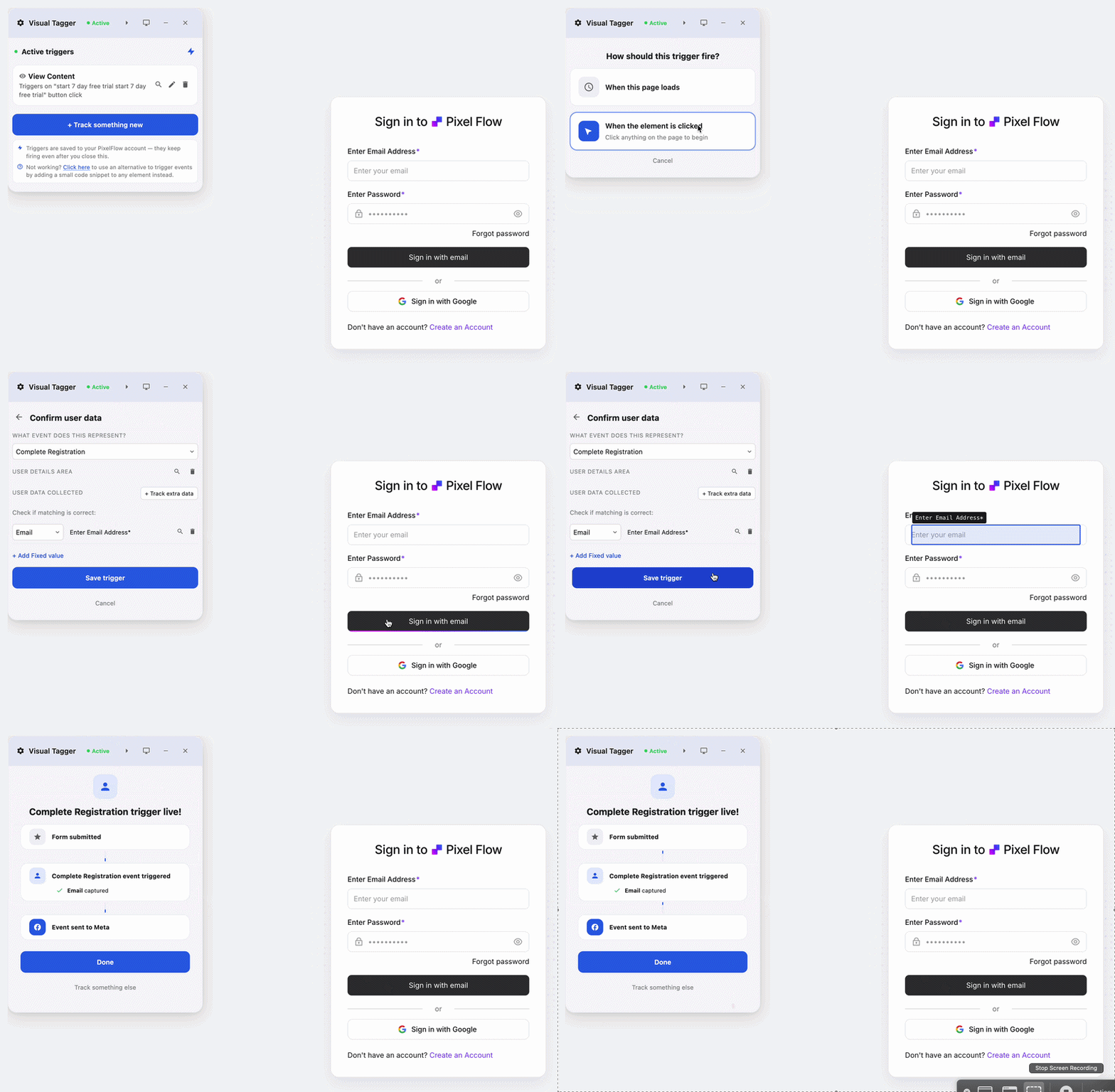
Automatic event tracking is where most teams feel an instant win. PixelFlow tracks PageView, ViewContent, AddToCart, InitiateCheckout, Purchase, Lead, and CompleteRegistration without having to define dozens of tags. For e‑commerce stores, purchase value, currency, and product data flow into the Meta Conversion API payload. For lead gen sites, form submissions become standard Lead events. Custom events are also supported when a business has more advanced needs.

PixelFlow puts a big focus on Event Match Quality. Real users report EMQ results that many had never seen before:

“We hit a 9.3/10 Event Match Quality score. I didn’t think that was possible for us.”
— Sebastian, studio-baguette.com

“Search events are sitting at 8.3/10 and our reporting finally makes sense.”
— Niall, reviewfox.co

“9.3/10 for purchases — I had never seen numbers like that.”
— Nick, irelandwebsitedesign.com

PixelFlow does this by grabbing customer data directly from forms and checkouts, hashing it correctly, passing fbp and fbc, and sending rich payloads to the conversions API Meta endpoint.

Transparency is another strong point. In the PixelFlow dashboard, every event appears with a timestamp, the page URL, and the full JSON payload sent to Meta. When something looks off in Ads Manager, you can line up a specific purchase or lead with what PixelFlow sent and see the exact fields. That helps you spot missing parameters, consent issues, or platform quirks fast.

These tracking gains translate into better business results. Customers talk about better traffic, more accurate Ads Manager reporting, and being able to spend less while knowing which campaigns to scale. Many share a similar story: they spent days stuck inside Stape and GTM, then switched to PixelFlow and had working CAPI Facebook tracking in under half an hour. For them, the biggest benefit is time saved and wasted ad spend avoided.

Thanks to server-side tracking and richer data, PixelFlow often captures up to 40% more conversions compared to pixel-only setups. That extra data feeds Meta’s algorithm with stronger signals, which helps reduce cost per purchase or lead and makes scaling budgets less risky.

On the privacy and compliance side, PixelFlow is built for markets where cookie consent matters. It works with major consent banners and only runs tracking after approval where needed. Scripts do not fire before consent on sites that must follow GDPR and similar rules.

Pricing is set as a clear subscription with no extra cloud hosting charges. When compared to the combined costs of Stape, cloud instances, and consultant time, most teams find that PixelFlow is the more affordable option in both money and hours.

Because of all this, PixelFlow is an excellent fit for no-code websites, marketing teams who want to move fast, e‑commerce stores that care about data quality, and agencies that need a repeatable Facebook Conversions API system for many clients.

Elevar: Advanced Analytics for Shopify and E-Commerce

Elevar sits in a different spot on the map. It is built as a data layer and tracking platform mainly for Shopify and other e‑commerce stores that want a very rich view of their data across many ad and analytics channels, not just Facebook.

At its core, Elevar connects your store to multiple tools. It sends data to the Meta Conversions API, Google Ads Enhanced Conversions, Google Analytics 4, TikTok, Pinterest, Snapchat, and more. For Shopify, it maps order status changes, refunds, subscriptions, and customer value metrics into a structured data layer that can feed these channels.

Elevar’s strongest point is deep Shopify integration. It understands checkout steps, product types, subscription renewals, and other e‑commerce patterns. That gives a detailed data stream to the Conversion API Meta endpoint, as well as to other ad networks and analytics platforms.

Setup is more involved than a pure no-code tool like PixelFlow, but much simpler than running your own GTM server-side stack. Most merchants:

  • Install Elevar from the Shopify App Store

  • Walk through configuration in the Elevar dashboard

  • Connect their Meta account and dataset

Expect one to three hours for initial setup, especially if you want to use every channel and data feed.

Key features include:

  • Server-side CAPI tracking

  • Multi-channel event sending

  • An advanced data layer with rich e‑commerce parameters

  • Built-in data quality scoring

Elevar will often highlight gaps, such as missing customer fields that could raise EMQ or improve other channels. For stores that care about detailed analytics, this view is very valuable.

Because it hooks directly into the Shopify checkout, Elevar tends to show strong Event Match Quality on Facebook. The same first-party data that feeds Facebook CAPI also feeds Google and other networks, which keeps tracking consistent across channels.

The platform also offers detailed inspectors where merchants can see which events are being sent to which channels. That helps diagnose tracking gaps and makes it easier to trust the numbers before making big ad budget decisions.

Pricing places Elevar in a premium tier. Plans usually run from around fifty dollars per month for smaller stores to several hundred dollars or more for high-revenue shops. For brands that spend heavily on ads across many platforms, that cost is often easy to justify.

There are trade-offs to consider. Elevar is tightly tied to e‑commerce, especially Shopify and similar platforms. It does not serve non-e‑commerce sites or no-code builders well. For a simple lead gen site that only needs Facebook Conversions API tracking, Elevar would be too much.

In short, Elevar fits mid to large Shopify stores with serious ad budgets and teams that want full multi-channel tracking from one place.

Littledata: Automated Multi-Platform Tracking for E-Commerce

Littledata aims to make tracking for e‑commerce feel “set and forget”. It focuses on Shopify and WooCommerce stores that want Facebook CAPI and Google tracking working together without building a custom stack.

The platform connects your store to Facebook Conversions API, Google Analytics 4, and Google Ads Enhanced Conversions. It uses standard event templates for e‑commerce actions like page views, product views, add to cart, checkout steps, and purchases. That means most merchants can get started by simply connecting accounts, with no custom code.

Littledata’s main strength is automation. Once installed from the Shopify App Store and connected to Meta and Google, it keeps mapping store events into the right format. This reduces the amount of manual tag work, and it lowers the chance of something breaking when a theme or app changes on the storefront.

The tool integrates tightly with Shopify (and Shopify Plus), with growing support for WooCommerce and a few others. It does not try to cover every platform on the market, but focuses on the most common store builders.

Setup is straightforward. Merchants usually:

  1. Install the app

  2. Connect Meta

  3. Choose which events to send to the Meta Conversions API

  4. Confirm the links to GA4 and Google Ads

This can often be done in under an hour, especially for a standard store.

On the Facebook side, Littledata handles server-side Conversions API events and makes use of checkout data to send customer details, which supports solid Event Match Quality. It may not chase the very highest EMQ numbers like a hand-crafted setup, but it gives good performance with minimal effort.

The dashboard shows basic event volumes and connection status. It does not go as deep into payload inspection as tools like Elevar or PixelFlow, so very technical teams may wish for more detail during debugging. For most store owners, though, the simple view is enough.

Pricing is mid-range, with tiers based on order volume. Smaller shops may spend around thirty dollars per month, while higher-volume stores pay more. For merchants who value simplicity and do not need heavy customization, this price feels reasonable.

Littledata is not a match for non-e‑commerce sites, landing pages, or no-code platforms like Webflow or Framer. It is not built for advanced custom tracking logic. Instead, it serves online stores that want Facebook CAPI and Google tracking that just works with as little effort as possible.

GTM Server-Side (Google Cloud): The Developer-Friendly Technical Option

Google Tag Manager server-side sits at the other end of the spectrum from no-code tools. It is a flexible, developer-focused way to send events to many destinations, including the Meta Conversions API. For companies with technical teams, it can be a powerful option. For marketing-only teams, it often feels overwhelming.

The architecture looks like this in simple terms. Client-side tags send events to a GTM server container. That container runs on a service like Google Cloud Run, AWS, or Azure. It receives browser events, reshapes them with custom logic, and forwards them on to endpoints such as Conversion API Meta, Google Analytics, or other partners.

This gives maximum control over which data fields are sent, how they are named, and which platforms receive them. You can write JavaScript to enrich events, merge data from different sources, and meet strict internal data policies. For large or complex businesses, that level of control is attractive.

However, the requirements are significant. You need someone who understands Google Tag Manager deeply, both web containers and server containers. They should be comfortable setting up services on Google Cloud or similar platforms. They also need to know how to structure HTTP requests, format JSON payloads, handle authentication with access tokens, and implement CAPI integration best practices.

The setup process reflects this complexity. Teams must:

  • Provision the GTM server container

  • Configure DNS if using custom domains

  • Connect browser containers to point at the server

  • Install or build CAPI tag templates

  • Define triggers and variables for each event

  • Add deduplication with event_id

  • Test thoroughly using GTM preview and Meta’s Test Events tool

Costs are split between hosting and labor. Cloud hosting fees often start around fifty dollars per month and rise with traffic. Developer time for setup and ongoing support is the larger line item. For many businesses, this is fine, because they already have analytics engineers on staff.

Advantages include extreme flexibility for custom data setups, the ability to consolidate tracking for Facebook, Google, TikTok, and more in one server container, and very fine-grained control over which data leaves the server. Enterprises that already rely on GTM often choose this path to keep everything under one roof.

The downsides map closely to the earlier Stape problem. It takes time to learn, time to build, and time to maintain. Non-technical users struggle to troubleshoot. Someone has to watch cloud costs and uptime. For businesses that just want a clean Facebook Conversions API connection and nothing more, this is overkill.

GTM server-side is best for large organizations with dedicated technical teams, agencies that do advanced tracking for many clients, and businesses with complex internal data rules. For most small and mid-sized companies, a simpler Stape alternative is the better path.

Partner Integrations (Shopify, WooCommerce, BigCommerce)

Many e‑commerce platforms now offer their own direct links to the Facebook Conversions API. These native or official partner integrations give merchants a simple, low-cost way to get basic server-side tracking in place without extra tools.

On Shopify, the main option is the Facebook & Instagram channel app. Merchants connect their store to Facebook Business Manager, pick their pixel or dataset, and enable the Conversions API. From there, Shopify sends standard purchase and other key events directly to the Meta Conversion API on the merchant’s behalf.

This approach has clear strengths. It is free, supported by both Shopify and Meta, and takes less than an hour in most cases. Merchants do not have to manage extra logins or cloud accounts. For many small shops, that is enough to start.

The WooCommerce world has a similar route through the official Facebook for WooCommerce plugin. It handles pixel and CAPI tracking, ties into the WordPress dashboard, and lets shop owners choose which events to send. Again, there is no added fee for the plugin itself, although WordPress hosting quality can affect performance.

BigCommerce also includes Facebook and Instagram channel features that sync product catalogs and send server-side events. Merchants enable the integration inside their store admin and connect to their Meta assets.

Native integrations share some common traits:

  • They are platform-locked; they only work for that specific e‑commerce system.

  • They focus on standard e‑commerce events rather than custom flows.

  • They rarely offer detailed views into the JSON payloads they send, so debugging EMQ or special cases can be tricky.

Because they have to serve a wide range of merchants with minimal configuration, they also do not always squeeze the highest possible EMQ scores from the Facebook Conversions API. For example, they may not capture every useful customer field or may give less control over consent and advanced mappings.

For merchants with simple needs, modest ad spend, and a tight budget, these integrations are a good starting point. They give a basic Conversion API link without adding another monthly bill. When tracking needs grow or when a store moves onto platforms like Webflow or Framer for the front-end, many teams later step up to a dedicated tool such as PixelFlow or Elevar.

Detailed Comparison: Features, Pricing, and Ease of Use

Once you understand what each option does, it helps to see them side by side. This comparison looks at core features, pricing patterns, and best-fit use cases so you can match a Facebook Conversions API tool to your real situation.

Comparison Table: Core Features

The table below summarizes how each option handles setup, platform support, automatic tracking, and data quality features.

Feature

PixelFlow

Elevar

Littledata

GTM Server-Side

Native Platform

Setup Time

15–20 minutes

1–3 hours

Around 1 hour

Several days to weeks

30–60 minutes

Technical Skill Required

None (no-code)

Low

Low

High (developer)

Low

Webflow Support

Yes, direct

No

No

Yes, custom

No

Squarespace Support

Yes, direct

No

No

Yes, custom

No

Framer Support

Yes, direct

No

No

Yes, custom

No

Shopify Support

No

Yes, strong

Yes, strong

Yes, custom

Yes, native

WordPress Support

Yes

Limited

Limited

Yes, custom

Yes for WooCommerce

Automatic Event Tracking

Yes, wide set

Yes, wide set

Yes, wide set

Manual setup

Yes, basic

Event Deduplication

Yes, automatic

Yes, automatic

Yes, automatic

Manual configuration

Yes, automatic

Detailed Event Logs

Yes, full JSON

Yes, inspector

Basic dashboard

Preview and logs

Limited

EMQ Optimization

Advanced (8.3–9.3 common)

Advanced

Good

Manual tuning

Basic

GDPR Tools

Yes, built in

Yes

Yes

Manual configuration

Yes

Multi-Platform Tracking

Facebook focus

Many platforms

Facebook and Google

Any platform

Facebook focus

Human Setup Support

Yes, video calls

Email and chat

Email

Community and paid help

Platform support

Comparison Table: Pricing Structure

Costs matter, especially when ad budgets are tight and teams need to justify every tool that touches their Meta Conversions API setup.

Solution

Pricing Model

Typical Monthly Cost

Hidden Costs

Value Focus

PixelFlow

Clear subscription

About $49–$149

None

Simplicity and high EMQ

Elevar

Revenue-based tiers

About $50–$500+

None

Multi-channel analytics

Littledata

Order-volume tiers

About $30–$150+

None

Automated tracking for e‑commerce

GTM Server-Side

Hosting plus dev time

About $50–$200+ hosting

Developer hours and maintenance time

Full control and custom data flows

Native Integrations

Included with platform

Included

None

Basic CAPI without extra subscription costs

Comparison Table: Best Use Cases

Different tools shine for different businesses. The table below summarizes who each option suits best.

Solution

Ideal For

Not Recommended For

PixelFlow

No-code platforms, small businesses, non-technical teams, fast rollouts

Very large enterprises with complex multi-system data pipelines

Elevar

Mid to large Shopify stores with cross-channel ad spend

Non-e‑commerce sites or teams that only need Facebook CAPI

Littledata

Small and mid-size Shopify or WooCommerce stores with simple needs

Non-e‑commerce platforms or teams needing deep customization

GTM Server-Side

Enterprises with developers and strict data rules

Small businesses and teams without technical capacity

Native Integrations

Budget-focused merchants with simple stores on Shopify, Woo, or BigCommerce

Advanced tracking, non-e‑commerce stacks, and maximum EMQ requirements

Analysis and Recommendations

For speed and simplicity, PixelFlow stands out. It gets working Facebook Conversions API tracking live in under half an hour, with proven Event Match Quality scores, without forcing teams into GTM or server management.

For platform compatibility, PixelFlow is also the strongest option for Webflow, Framer, and Squarespace, because it supports them directly. If your main site runs on these builders, it sits in a class of its own.

For e‑commerce brands that want multi-channel tracking, Elevar offers the most complete view across Facebook, Google, and other networks. The trade-off is higher cost and more setup work, which makes sense for stores with serious ad budgets.

For merchants on a tight budget who just want basic CAPI coverage, native integrations on Shopify, WooCommerce, and BigCommerce are a reasonable starting point. They leave performance on the table but keep costs at zero.

For organizations that value absolute control over their CAPI tracking and already have technical staff, GTM server-side is the right pick. For everyone else, a simpler Stape alternative such as PixelFlow will bring better results faster.

How to Choose the Right Alternative for Your Business

Choosing the right Facebook Conversions API option is less about picking the “best tool overall” and more about matching your platform, skills, budget, and goals. A clear decision framework helps narrow the field quickly.

Decision Framework: Key Questions to Ask

1. What platform is your website built on?

  • For no-code builders like Webflow, Framer, and Squarespace, PixelFlow is the clear front-runner. Other options either do not support these platforms at all or require manual custom code that defeats the point of a no-code site. PixelFlow gives a clean CAPI integration without that headache.

  • For Shopify, WooCommerce, and BigCommerce, the field is wider. You can start with native integrations, use PixelFlow, or step into tools like Elevar or Littledata. The right fit will depend on how complex your tracking needs are and how many ad platforms you use.

  • For WordPress sites that are not full stores, and for static HTML sites, PixelFlow offers the simplest path to the Meta Conversions API. GTM server-side is still possible, but it demands more technical care.

  • For custom or enterprise platforms, teams can choose between PixelFlow for a fast setup or GTM server-side for a very controlled, highly customized build.

2. What technical resources do you have available?

  • If you do not have developer access, or if your developers are already overloaded, you need a tool that marketing can manage on its own. PixelFlow and native e‑commerce integrations sit in this category and let non-technical people manage the Facebook Conversions API.

  • If you can borrow a developer for a short setup window, tools like Elevar or Littledata are in play. They still aim to be friendly but may benefit from a technical eye during installation or custom tweaks.

  • If you have a dedicated in-house engineering or analytics team, GTM server-side becomes viable. These teams can handle the code and cloud parts, and they might prefer the extra control.

3. What is your primary goal?

  • When the top priority is better Facebook or Meta ads performance, you should focus on EMQ and event completeness. PixelFlow and Elevar both show strong results here, sending rich data to the Conversion API so Meta can learn faster.

  • If your pain is incomplete or broken conversion data, any server-side tracking tool will bring improvement. Still, you will likely want one that offers event logs and payload views so you can see what is actually being sent.

  • If you want to track across several ad platforms from one place, tools like Elevar or Littledata make more sense than a Facebook-only tool. They push the same base data into Meta, Google, and others in one flow.

  • If your goal is simpler tracking and fewer moving parts, a no-code tool such as PixelFlow can replace a patchwork of scripts and tag manager hacks.

4. What is your budget and business size?

  • For small businesses or startups with under fifty thousand dollars in annual ad spend, the best picks are native platform integrations or PixelFlow. These choices keep costs modest while still giving a solid Facebook Conversions API setup.

  • Growing businesses with moderate spend can look at PixelFlow or Littledata. Both scale well and stay easier to manage than running your own GTM server-side stack.

  • Established brands with heavier ad budgets can justify premium tools like Elevar or a custom GTM server-side build. Their higher costs are easier to absorb when even small tracking gains return many times that in ad performance.

  • Enterprises with multi-million ad budgets and complex stacks often favor GTM server-side plus internal or agency support, so they can control every detail.

5. How quickly do you need to be operational?

  • If you need CAPI Facebook tracking live by this afternoon, PixelFlow or native integrations are your best bet. They can both be configured within an hour in most cases.

  • If you can dedicate a full day, Elevar or Littledata offer more depth and multi-platform tracking without drifting into multi-week projects.

  • If you have several weeks, a custom GTM server-side build can be tested and hardened before going live, which is important for large companies that cannot risk mistakes.

6. How important is Event Match Quality for your campaigns?

  • If EMQ is a top priority, and you want scores in the 8 to 9 range, lean toward tools that focus strongly on EMQ, like PixelFlow and Elevar. These gather rich user data and handle hashing and mapping carefully.

  • If EMQ just needs to be “good enough”, most dedicated CAPI tools and even native integrations will move you far ahead of pixel-only tracking. For many small stores, that may be enough to hit their goals.

Recommendation Matrix

  • Choose PixelFlow if you use Webflow, Framer, or Squarespace; need a fast and painless Facebook Conversions API setup; value high EMQ scores proven by other users; and prefer spending time on campaigns rather than tracking infrastructure. It is also a strong pick for agencies that want a repeatable, no-code system for clients.

  • Choose Elevar if you run a mid to large Shopify store, advertise on Facebook, Google, TikTok, and more, and care deeply about customer lifetime value metrics and advanced analytics. Its higher price makes the most sense when your ad budgets and revenue are already significant.

  • Choose Littledata if you have a small or mid-sized Shopify or WooCommerce store, want both Facebook CAPI and Google Analytics tracking, and would rather have a simple automated system than a very customizable one.

  • Choose GTM Server-Side if you have engineers on staff, complex business logic, and strict data rules. This path gives the most control but also needs the most care. For teams with the right skills, it can be a powerful core for all tracking, including the Meta Conversions API.

  • Choose Native Platform Integrations if budget is tight, your store runs on Shopify, WooCommerce, or BigCommerce, and your needs are basic. They give you a free way to start sending server-side events, and you can always step up to a more advanced Stape alternative later.

Step-by-Step: Setting Up PixelFlow (Fastest Implementation)

To see what a simple Facebook Conversions API setup looks like in practice, it helps to walk through PixelFlow from zero to working events. Most teams can complete this process within twenty minutes.

Prerequisites (2 Minutes)

Before starting, make sure a few basics are ready:

  • A live website on Webflow, Framer, Squarespace, WordPress, Shopify, or a custom HTML stack

  • A Facebook Business Manager account with admin rights to the ad account and pixel or dataset

If you do not already have a Meta Pixel, create one in Business Manager under Data Sources → Pixels. In Events Manager, you will also generate a Conversions API access token in the Settings tab. Keep both the Pixel ID and the token handy, because PixelFlow uses them to send events to the Meta Conversions API.

Implementation Process

Step 1 – Create Your PixelFlow Account

Go to the PixelFlow site and sign up. The signup form asks for basic details so your dashboard can be created. You choose a plan that matches your traffic, but you can adjust this later if your site grows faster than expected.

Once your account is ready, you land in the PixelFlow dashboard. This is where you add websites, see event logs, and manage connections like CAPI Facebook.

Step 2 – Connect Your Website

In the dashboard, click to add a new website. Enter the site URL and select the platform type, such as Webflow, Framer, Squarespace, WordPress, Shopify, or HTML. PixelFlow then generates a script that is specific to your site.

Copy this script and paste it into your website settings:

  • On Webflow: Project Settings → Custom Code → Footer, then publish.

  • On Framer: paste it in the custom code area at the end of the body.

  • On Squarespace: use the Code Injection footer field.

  • On WordPress: use a headers-and-footers plugin or edit the footer template.

  • On static HTML: add the script before the closing </body> tag on each page.

After saving and publishing, your site is ready to send events to PixelFlow.

Step 3 – Connect Facebook Conversions API

Back in the PixelFlow dashboard, open the Facebook CAPI integration settings. Enter your Meta Pixel ID and paste the Conversions API access token you created earlier in Events Manager. When you click connect, PixelFlow links your site to the Facebook Conversions API.

From this point, PixelFlow takes care of sending both pixel and server-side events. It also adds deduplication with shared event_id values so that Meta counts each conversion once even though it receives it from both browser and server.

Step 4 – Configure Event Tracking

PixelFlow auto-detects a wide range of events. In the dashboard, you can view which events are active, such as PageView, ViewContent, AddToCart, InitiateCheckout, Purchase, Lead, or CompleteRegistration. For stores, you can check that purchase value, currency, and product details are present. For lead sites, you can confirm which forms send Lead events.

Most standard setups work without any extra changes, but you can add custom events if your business has special flows that matter for your CAPI tracking.

Step 5 – Verify Implementation

Next, test that everything works as expected:

  1. Visit your site in a fresh browser window and act like a real visitor.

  2. View key pages, add items to a cart if you have a shop, and complete a test checkout or form when possible.

In PixelFlow, open the Event Logs area. You should see events appear in real time, each with a timestamp and URL. Click one to inspect the full JSON payload that PixelFlow is sending to the Meta Conversions API. Look for hashed fields such as email and phone to confirm that customer information is included.

Then open Meta Events Manager and go to the Test Events section. Use the test code that PixelFlow provides. Trigger more test actions on your site. You should see both browser and server events arrive. Meta marks one as processed and the other as deduplicated when everything is wired up correctly.

Step 6 – Monitor Event Match Quality

Within a day or two, enough traffic will flow to calculate Event Match Quality. In Events Manager, check the EMQ scores for server events. PixelFlow users commonly see scores from 8.3 to 9.3 out of 10.

If your score is lower than expected, PixelFlow’s logs and guidance can show which customer parameters are missing or formatted poorly. For example, you may need to pass more customer fields from a form, or adjust how certain fields are collected in your platform.

From signup to verified tracking, most teams complete this flow in fifteen to twenty minutes. That is a big shift compared to days of configuring Stape and GTM, and it gives you a strong Facebook Conversions API base to support better ad performance.

Conclusion

Server-side tracking with the Facebook Conversions API is no longer a nice upgrade. It is now a key part of running profitable Meta campaigns, because it restores conversion data lost to ad blockers, cookie limits, and mobile privacy changes.

Stape and GTM server-side can deliver excellent results, but they demand technical comfort with cloud hosting, containers, and complex tag manager builds. For many SaaS companies, small businesses, and busy marketing teams, that level of complexity becomes a burden rather than a benefit.

The good news is that strong Stape alternative options now exist. PixelFlow offers a fast and friendly path to high-quality Meta Conversions API tracking on the platforms marketers actually use, from Webflow and Framer to Squarespace, WordPress, and Shopify. Elevar and Littledata serve data-hungry e‑commerce brands that want multi-channel tracking. Native integrations and GTM server-side still have their place for budget-focused shops and enterprise stacks.

If your ads are under-reporting or your Event Match Quality is stuck at low scores, now is the time to fix tracking. With the right tool, you can move from troubleshooting to testing creatives and offers, backed by accurate data that reflects what really happens on your site. For many teams, PixelFlow is the simplest and quickest way to make that shift.

FAQs

How Is the Facebook Conversions API Different From the Meta Pixel?

The Meta Pixel runs in the visitor’s browser and sends events from that device. The Facebook Conversions API sends events from your server directly to Meta. Because server-side tracking does not depend on the browser in the same way, it is less affected by ad blockers, cookie limits, and crashes. The best setups use both together with deduplication so Meta sees as many conversions as possible without double-counting.

Do I Still Need the Pixel if I Use the Facebook Conversions API?

Yes, in most cases you still want the pixel. The pixel is great at capturing real-time page views and on-site actions, while the Meta Conversions API adds reliable server events and extra customer data. When both are active and share an event_id, Meta keeps only one record for each conversion. This combined view gives better optimization and more stable reports than either method alone.

Why Are My Event Match Quality Scores Low?

Low EMQ scores usually mean Meta is not receiving enough high-quality customer identifiers. Common issues include:

  • Missing email or phone values

  • Incorrect hashing

  • Not passing fbp or fbc

  • Using inconsistent formats

A tool like PixelFlow helps by collecting and hashing these fields correctly and by giving you event logs so you can see exactly which parameters are being sent to the conversions API Meta.

Is PixelFlow Only for E-Commerce Stores?

No. PixelFlow works well for both e‑commerce and lead generation. Stores benefit from automatic tracking of AddToCart, InitiateCheckout, and Purchase events, while lead gen sites use PageView, ViewContent, Lead, and CompleteRegistration. As long as your site runs on a supported platform like Webflow, Framer, Squarespace, WordPress, Shopify, or custom HTML, PixelFlow can handle your Facebook Conversions API tracking.

Is the Facebook Conversions API Compliant With GDPR and Other Privacy Rules?

Yes, it can be. Compliance depends on how you use it, not just on the tool itself. You need to collect consent where required, respect user choices, and work with proper cookie banners. Platforms such as PixelFlow help by integrating with consent tools and only running scripts after approval in markets that require it. When set up this way, the Meta Conversions API supports a privacy-aware approach using first-party data instead of insecure tracking tricks.