This guide walks through a complete setup of how to setup the Facebook Pixel & Conversions API on Webflow. It is written for SaaS companies, online stores, agencies, and business owners in the US who want better tracking, lower ad costs, and clearer reporting from Meta ads.
The article follows a step‑by‑step structure from basic concepts through advanced setup, with a special focus on using PixelFlow to handle the Conversions API on Webflow without heavy technical work.
Introduction
Apple’s iOS 14 changes, strict browsers, and ad blockers all cut off a big share of normal pixel events. When tracking runs only in the browser, a good chunk of signups and purchases never reach Meta. That weak data then feeds Meta’s algorithm, which sends weaker traffic back, and ad performance slowly slides.
“Half the money I spend on advertising is wasted; the trouble is I don’t know which half.” — John Wanamaker
The fix is not one tool on its own. It is a dual setup that combines the browser‑based Facebook Pixel with the server‑based Conversions API, tuned for Webflow. Done right, this stack can raise Event Match Quality scores into the 8.5–9.8 range, boost ROAS, and give clear answers about what is working. This guide explains what the Pixel and CAPI are, how they work on Webflow, how to handle privacy and consent, and how PixelFlow lets non‑technical teams put everything in place in minutes instead of weeks.
By the end, a marketer, founder, or small team will know exactly how to get reliable tracking in Webflow without living in Google Tag Manager or debugging code all week.
What Is The Facebook Pixel And Why Does Your Webflow Site Need It?
The Facebook Pixel (now called the Meta Pixel) is a small JavaScript snippet that runs in the visitor’s browser. On a Webflow site, it records page views and key actions, then sends those events back to Meta. That gives Meta the data it needs to link ad clicks to real‑world behavior on your site.
The Pixel has three main jobs:
Track conversions so you can see which campaigns and ad sets create leads, trials, purchases, and other goals.
Help Meta optimize delivery by learning which visitors tend to convert.
Power audience building, so you can retarget site visitors and build Lookalike Audiences from them.
For Webflow users, this is especially important because Webflow does not come with the same deep ad integrations that platforms like Shopify have. Webflow does offer a native place to paste your Pixel ID, and for Ecommerce plans it can send basic events such as product views, add to cart, and purchase. All of that appears in Events Manager inside Meta Business Suite, where you see counts, parameters, and Event Match Quality.
However, browser‑only tracking is no longer enough. Many Webflow sites see 15–30 percent of conversions lost before they reach Meta, which hurts ROAS and makes scaling risky. The Pixel is still required, but it now works best as one part of a pair, alongside the Conversions API.
Why Traditional Facebook Pixel Tracking Is Failing (And What That Means For Your Webflow Campaigns)
For years, the browser pixel gave a fairly accurate picture of ad performance. That changed when privacy controls became stricter. iOS 14 and later give users clear options to block tracking at the app level, and privacy‑focused browsers restrict third‑party cookies and tracking scripts by default.
Ad blockers add another roadblock, since they often block Facebook’s script entirely. That means the web page loads, but the pixel never fires. On many sites, somewhere between one sixth and one third of conversions are simply invisible to Meta when only the browser pixel is in place.
Cookies are also shorter lived and more limited than before. A visitor who clicks an ad one day and purchases on another device or after cookies expire may not be tied back to the original ad. Meta then under‑reports results, so campaigns look worse than they are. The algorithm has less high‑quality feedback, which leads to weaker targeting and higher costs.
For Webflow users who rely only on the browser pixel, that missing data shows up as low Event Match Quality, confusing attribution, and small retargeting audiences. The Conversions API fixes this by sending events directly from your server to Meta, so important events are recorded even when the browser is blocked.
Understanding Facebook Conversions API: The Missing Piece For Webflow Users
Facebook Conversions API (often shortened to CAPI) sends events from your server to Meta instead of only from the browser. When a visitor fills a form or checks out, your backend or tracking service forwards that action to Meta through a secure API call.
The Pixel runs in the browser, while CAPI lives server side. Neither replaces the other:
You still want the Webflow facebook pixel for quick browser events and rich client data, such as the full URL and referrer.
CAPI adds a second path that is far harder for ad blockers and strict browsers to break, which gives a fuller picture.
Meta expects a dual setup where the same event is often sent both from the browser and from the server. To avoid counting twice, Meta uses an event_id that both copies share. It keeps one record, enriched with the best parts of each. That is called deduplication, and it is how CAPI and the Pixel work together instead of fighting each other.
For Webflow users, the hard part has always been implementation. Shopify and WooCommerce have guided flows where you click a few buttons and CAPI is ready. Webflow has no built‑in Conversions API link. The classic way to add CAPI involves Google Tag Manager, server containers, custom code, and data layers. That is a tall order for most marketing teams.
This is where tools like PixelFlow matter. They give Webflow sites the same server‑side tracking power as larger platforms, without needing in‑house developers. CAPI then feeds better, richer data to Meta, drives higher Event Match Quality, and makes your ad spend work harder instead of going to waste.
To summarize the roles:
Aspect | Browser Pixel | Conversions API (Server Side) |
|---|---|---|
Where It Runs | Visitor’s browser | Server or tracking service |
Vulnerable To | Ad blockers, cookie limits, browsers | Misconfiguration, server downtime |
Data Types | URL, referrer, browser data | Customer fields, order values, clean events |
Best Use | Quick client events and audiences | Reliable conversion tracking and EMQ gains |
The Impact Of Event Match Quality On Your Ad Performance
Event Match Quality (EMQ) is Meta’s score for how well an event lines up with a real person in its systems. Each event gets a number from zero to ten. A higher score means Meta could match more customer details, such as email, phone, name, and location, to a known user profile.
Meta can work with a page view that has only an IP address and user agent, but that gives a weak signal. When an event includes hashed email, phone number, first and last name, city, state, and ZIP, EMQ rises sharply. That strong match helps Meta link conversions to ad impressions with much more confidence.
As EMQ climbs, ads usually become cheaper and more effective. Meta’s algorithm can find patterns in high‑quality events and seek more people who look similar, which lowers cost per result and lifts ROAS. Scores in the 8.5–9.8 range are considered excellent. PixelFlow users often see an average around 9.3, because the platform adds and cleans customer data before sending it server side.
Low EMQ has the opposite effect. When Meta cannot match many conversions back to real users, it guesses more broadly. You pay for more impressions that never had much chance to convert. By improving data quality through CAPI, Webflow sites give Meta what it needs to aim far better.
Step-By-Step: Installing The Facebook Pixel In Webflow (Native Integration Method)
Once your Pixel exists and you have the ID, you can connect it inside Webflow. Webflow’s native integration adds the base pixel script to every page, without asking you to handle the code yourself.
Log in to Webflow and go to your project dashboard.
On the site card, open the three‑dot menu and click Settings. This opens the Site settings panel.
At the top, choose the Apps and Integrations tab.
Scroll until you see the Meta Pixel section.
You will find a single field that asks for a Meta Pixel ID. Paste the numeric ID you copied from Events Manager into that field. Take a second to check for extra spaces or missing digits, since even a small typo will break tracking.
Unfortunately, only using the Facebook Pixel means you'll be losing up to 40% of your data because of iOS privacy settings, ad blockers and more. The solution to this is to use both the Facebook Pixel and the Conversions API together for maximum coverage, ensuring you have as much data as possible.
Setting Up Facebook Conversions API For Your Webflow Site
The Challenge
Adding Conversions API on a coded site usually means a developer connects the backend to Meta’s endpoint and sends events directly from the server. On hosted ecommerce tools, Meta and the platform often handle this under the hood. Webflow offers no such direct CAPI hookup, which leaves most teams with a very technical path.
If trying to follow Meta’s CAPI guides feels like reading another language, that is completely normal. The official documentation assumes comfort with code, server concepts, and tool chains such as Google Tag Manager. Phrases like “data layer,” “server endpoint,” and “event payload” are common, but not explained at a basic marketing level.
Google Tag Manager itself has a learning curve. It introduces tags, triggers, variables, and separate workspaces for web and server. Each part has its own rules and edge cases. When something breaks, error messages are often vague, and finding the real cause may mean sifting through browser consoles and network logs.
The Simplified Solution: Installing Facebook Conversions API & Pixel On Webflow In Minutes
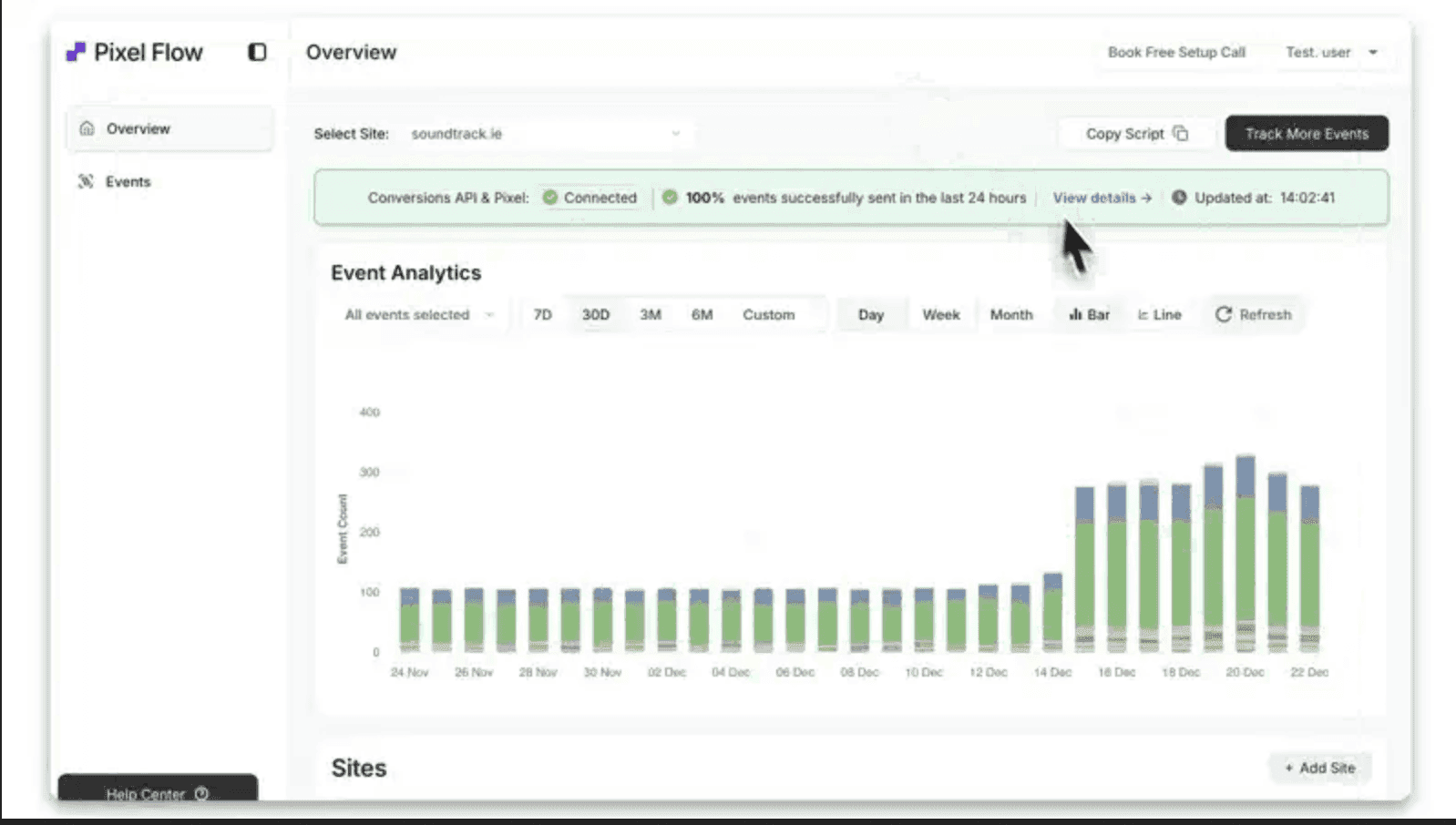
Instead of wrestling with servers and tag managers, many Webflow teams now use PixelFlow. PixelFlow is a lightweight tracking tool built to connect sites like Webflow to Meta’s Conversions API without heavy code work. It handles the hard parts under the hood while leaving you with a clear, friendly dashboard.
The core idea is simple:
You add one PixelFlow script to your Webflow project.
You link PixelFlow to your Meta Business Manager.
From that point forward, PixelFlow sends both browser events and server events for the same actions.
You still get the normal Webflow facebook pixel behavior, plus server‑side events that fill in the gaps.
PixelFlow supports point‑and‑click event setup for Webflow sites. You can tag buttons, forms, links, and pages from inside the PixelFlow dashboard, without editing JavaScript by hand. For Webflow Ecommerce, PixelFlow can read product data and send rich ecommerce events, including value and currency, to Meta.
Because events are sent server side, they are much less affected by ad blockers and strict browser settings. PixelFlow also enriches events with customer data where available and sends it in the format Meta prefers. That is how many customers see Event Match Quality scores climb into the 9+ range.
On the privacy side, PixelFlow plays nicely with standard cookie consent tools. If you use a consent banner that controls when the pixel script fires, PixelFlow respects that choice and waits until consent is granted. This makes it a good fit for teams that care about GDPR and CPRA while still wanting accurate ad reporting.
Step-By-Step: Setting Up PixelFlow On Your Webflow Site
Setting up PixelFlow on a Webflow site is quicker than a full manual Conversions API build. Most teams can go from zero to live tracking in under half an hour.
Create A PixelFlow Account
Sign up for PixelFlow. During onboarding, you connect your Meta Business Manager, pick the ad account you use, and select the Pixel that belongs to your Webflow site.Install The PixelFlow Script In Webflow
PixelFlow gives you a small script snippet. Copy that script.
In Webflow, open your Site settings → Custom Code tab.
Paste the script into the Head code field.
Save your changes and publish your site so the script begins to load on every page.
Configure Events In PixelFlow
After your site is live with the script, go back to PixelFlow. In the dashboard, you can:Pick which standard events to send.
For example:
Map clicks on a “Start Free Trial” button to the
Leadevent.Treat a completed signup form as
CompleteRegistration.
PixelFlow guides you through selecting elements or setting rules so events fire only when they should.
Enable Ecommerce Tracking (If Relevant)
PixelFlow can automatically track Ecommerce in Webflow. Simply enable eCommerce tracking in the initial setup and you're done.Test In PixelFlow And Events Manager
Finally, open the real‑time event log in PixelFlow and the Test Events tab in Meta Events Manager. Click through your site, submit a test form, and, if possible, place a low‑value test order. You should see matching events appear in both tools.After a day or two, check Event Match Quality in Events Manager. Scores above eight show that your Conversions API setup is feeding Meta strong data. Don't forget, some scores will always be low such as
PageVieworViewContentevents where you have little to no information on users so low scores are expected.
Advanced Event Tracking: Events And E-Commerce Optimization
Once the base pixel and CAPI are in place, you can move beyond simple PageView events. Meta supports a set of standard events that cover common actions, plus custom events for anything more specific. Using a mix of both gives Webflow sites a clear view of the full funnel.
Standard events for B2B and SaaS include:
LeadCompleteRegistrationContactSchedule
These fit actions such as demo requests, account creation, and booking calls.
For Ecommerce, key standard events are:
ViewContentAddToCartInitiateCheckoutPurchase
Whenever a standard name fits, it is better to use it, because Meta understands those events deeply.
Parameters make events more valuable:
For purchases, pass value and currency so Meta can tie revenue back to ads.
For content views, pass product IDs or content IDs, which feed catalog‑based ads.
For lead events, pass plan type or funnel step.
PixelFlow makes it much easier to attach these parameters without writing raw code.
Form submissions, button clicks, and visits to thank you pages are all good candidates for tracked events. A clear structure such as ViewContent on feature pages, Lead on demo requests, and Purchase on paid plans gives Meta many signals it can use to refine targeting for your Webflow campaigns.
E-Commerce Event Tracking Checklist For Webflow Stores
For Webflow stores, a clear tracking checklist helps capture each important step in the shopper path. With both the Pixel and Conversions API active, your store can send rich events that make catalog ads and retargeting work much better.
Use this checklist:
Product Page Views (
ViewContent)Include product ID, name, price, and category.
This allows Meta to show shoppers the exact items they viewed in dynamic ads and to build audiences around specific categories.
If Webflow’s native Ecommerce events are active, add CAPI on top through PixelFlow for better match quality.
Cart And Checkout Steps (
AddToCart,InitiateCheckout)When a shopper adds an item to the cart or starts checkout, send events that include item details and cart value.
These events fuel retargeting campaigns for cart abandoners and highlight where people drop off between interest and purchase.
Completed Orders (
Purchase)Fire on the order confirmation page.
Include total order value, currency, and, where possible, a list of items.
This makes ROAS in Ads Manager meaningful and helps you understand product performance.
You can also track search actions, collection page views, and wishlist additions as separate events so that you know which parts of the store hold the most interest.
After you set up each event, run through a test flow:
View a product.
Add it to your cart.
Proceed to checkout.
Complete a small test order.
Watch Events Manager’s Test Events tab and PixelFlow’s logs to make sure each step fires once with correct values. If something looks off, fix it before running high‑budget campaigns.
Conclusion
Facebook and Instagram ads still work well for Webflow sites, but only when Meta sees what actually happens after the click. The standard Webflow facebook pixel gives a start, yet on its own it misses many conversions because of privacy changes, cookies, and blockers.
Pairing the browser pixel with Conversions API fixes this blind spot. CAPI sends server events that are harder to block and can carry richer customer data. Together they raise Event Match Quality, sharpen targeting, and make ROAS numbers match real revenue far more closely.
Traditional Conversions API setups on Webflow have been heavy, with Google Tag Manager servers, data layers, and constant testing. PixelFlow removes most of that weight. With a single script, a quick Meta connection, and a friendly dashboard for event setup, teams can reach EMQ scores in the 8.5–9.8 range and see steady improvements in performance.
If your ad reports feel off, now is the time to fix tracking rather than push more budget into guesswork. Start by adding the pixel natively in Webflow, then layer PixelFlow and Conversions API on top. Spend a little time setting clear events, consent handling, and reporting checks. The payoff is a long stretch of ad spend that is easier to scale, easier to trust, and far less likely to leak conversions you worked hard to earn.
FAQs
Question 1: Do I Need Both Facebook Pixel And Conversions API On My Webflow Site?
Yes, you really do want both pieces working together. The Facebook Pixel records events in the browser, which gives quick feedback on page views and actions, but it is often blocked or limited. Conversions API sends a second copy of important events from the server, where blockers and strict browser rules have less impact. Meta then uses an event ID to merge these copies so it counts each action only once. Some events will arrive only from the browser and others only from the server, so using both covers more ground. Meta itself now recommends this dual setup, since running the pixel alone often loses fifteen to thirty percent of conversions, while CAPI alone misses some helpful browser details.
Question 2: How Long Does It Take To Set Up Facebook Conversions API On Webflow?
Using a tool such as PixelFlow will mean you can setup the Facebook Conversions API in minutes compared to the setup using Google Tags Manager which will take days. Most Webflow users can sign up, connect Meta, paste the script in Site settings, and define key events in about ten to fifteen minutes. Event Match Quality scores and reporting then settle over the next twenty‑four to forty‑eight hours, as more server events arrive.
Question 3: What Is Event Match Quality And Why Does It Matter?
Event Match Quality is Meta’s score for how well an event matches a real person in its systems. Each event receives a number from zero to ten, with ten being a very strong match. This score depends on which customer details you send, such as hashed email, phone, first and last name, city, state, and ZIP code. When more of this data is present and clean, Meta finds more matches and raises the score. High EMQ lets the algorithm link conversions to ad impressions more often, which sharpens targeting and improves ROAS. Scores above eight and a half are usually considered excellent, and PixelFlow setups often reach around 9.3. When scores are low, Meta has to guess more, which wastes spend and weakens performance.
Question 4: Will Setting Up Conversions API Improve My Facebook Ad Performance?
In most cases, yes, Conversions API helps ad performance a lot. By sending more complete and reliable conversion data to Meta, CAPI gives the algorithm a clearer picture of who actually buys, signs up, or books. With better feedback, Meta can adjust delivery toward users who look like those converters, which usually lowers cost per purchase or cost per lead. Many advertisers see reported conversions climb once CAPI is in place, simply because lost events are now counted. That improvement feeds back into smarter optimization, so you can scale winning campaigns with more confidence. The effect builds over several weeks as Meta learns from stronger data, and sites that skip CAPI often fall behind competitors who use it well.
Question 5: Is Facebook Pixel Installation GDPR Compliant?
The pixel itself is only a tool. Compliance depends on how you use it. Under GDPR, you need clear permission from visitors in the European Union before running tracking scripts for advertising. On Webflow, that usually means turning on the Delay for cookie consent option in the Meta Pixel settings and showing a visible consent banner when users arrive. The banner should explain that cookies are used for analytics and ads, link to your policies, and offer a real choice between accepting and declining. After someone accepts, you can call the consent command and start tracking. Many consent platforms work well with Webflow and tools like PixelFlow, as long as they control when the base pixel loads and always honor the visitor’s choice.
Question 6: Can I Track Custom Events Beyond E-Commerce Purchases On Webflow?
Yes, you can track almost any meaningful action on your Webflow site, not just purchases. Meta offers standard events such as Lead, Contact, and CompleteRegistration that fit common SaaS and B2B actions, like demo bookings or account signups. If those do not quite match what you need, you can create custom events with names that reflect your funnel steps. With tools like PixelFlow, you can tag buttons, forms, and links visually, then choose which standard or custom event each one fires, without hand coding. You can also add parameters, such as plan type or content category, so your reports show richer detail. Tracking these micro‑conversions helps you see where prospects move forward or drop off and gives Meta more data to work with at every stage.