Squarespace makes it simple to build a professional website and e-commerce store. But if you’re running Facebook ads to drive traffic and sales, the standard Facebook Pixel isn’t enough anymore.
Ad blockers, iOS 14 privacy changes, and browser restrictions mean you’re likely losing 20-40% of your conversion data. That’s money left on the table and inaccurate data hurting your ad optimization.
The solution? Facebook Conversions API (CAPI) - server-side tracking that captures conversions your Pixel misses.
This guide walks you through setting up Facebook Conversions API on your Squarespace site, no coding required. New to CAPI? Read our complete guide to Facebook Conversions API first.
Why Squarespace Store Owners Need Facebook Conversions API
If you’re selling products on Squarespace and advertising on Facebook, you face a critical problem: incomplete conversion tracking.
Here’s what’s happening right now:
iOS 14 blocks tracking. Most iPhone users have opted out of tracking. When they buy from your Squarespace store, Facebook might not know the purchase came from your ad.
Ad blockers block the Pixel. Safari, Brave, and privacy-focused browsers block the Facebook Pixel by default. Sales from these visitors don’t get attributed to your ads.
Third-party cookies are disappearing. Browsers are eliminating cookie-based tracking. The Pixel depends on cookies. Server-side tracking doesn’t.
The impact on your business:
Facebook can’t see which ads are actually driving sales
Your campaigns optimize on incomplete data
Your ROAS looks worse than it actually is
You waste budget on ads that appear not to work
This is why Facebook ads often underreport conversions. Facebook Conversions API solves this by sending purchase data directly from a server to Facebook, completely bypassing browser limitations.
Learn more about the difference between server-side tracking and Pixel.
The result? Accurate conversion tracking, better ad optimization, and more sales.
What You’ll Need Before Starting
Before setting up CAPI on your Squarespace site, gather these:
✅ A Squarespace website (any plan, but Business or Commerce plan for full e-commerce)
✅ Facebook Business Manager account
✅ Facebook Pixel already installed on your Squarespace site
✅ Admin access to Squarespace
✅ Access to Facebook Events Manager
Keep your Pixel installed. CAPI and the Pixel work together. Facebook automatically deduplicates events so you never double-count conversions.
Method 1: Set Up CAPI with PixelFlow (Recommended for Squarespace)
The fastest way to add Facebook Conversions API to Squarespace is using PixelFlow - a no-code tool designed specifically for platforms like Squarespace.
Why? Because by installing just one code snippet on your Squarepsace site, PixelFlow automatically captures all key eCommerce events on your Squarespace site including:
Add to Cart
Iniatiate Checkout
Purchase
It also captures PageViews and can capture form submissions too.
Each event includes rich details such as product name, price, quantity, and total order value, all sent directly to Facebook through the Conversion API (CAPI). This means you’ll finally get better data flowing to your Facebook ads which means its more easy for Facebook to find you similar customers in your ads.
What’s even better is that PixelFlow loads both your Pixel & CAPI together for you to get the most coverage and it automatically handles deduplication so you don’t need to worry about extra events showing up in your events manager.
Step 1: Sign Up for PixelFlow
Go to PixelFlow.so
Click Get Started
Create your account
Select Squarespace as your platform
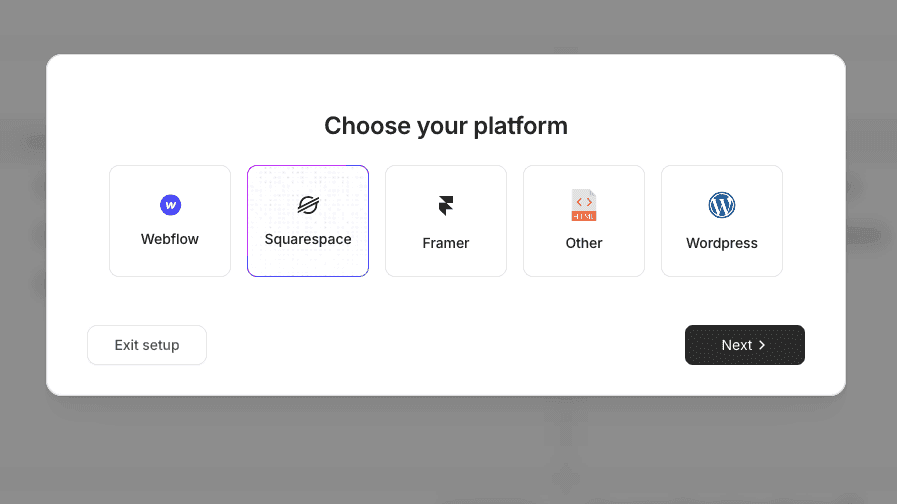
Step 2: Enter your website URL
Enter your website URL
(Optional) Choose a currency for your website if you sell eCommerce products
Step 3: Connect Your Facebook Pixel/Dataset
Next you need to add your Pixel name (this can be anything), Pixel ID (called Dataset ID in Facebook) and create an access token.
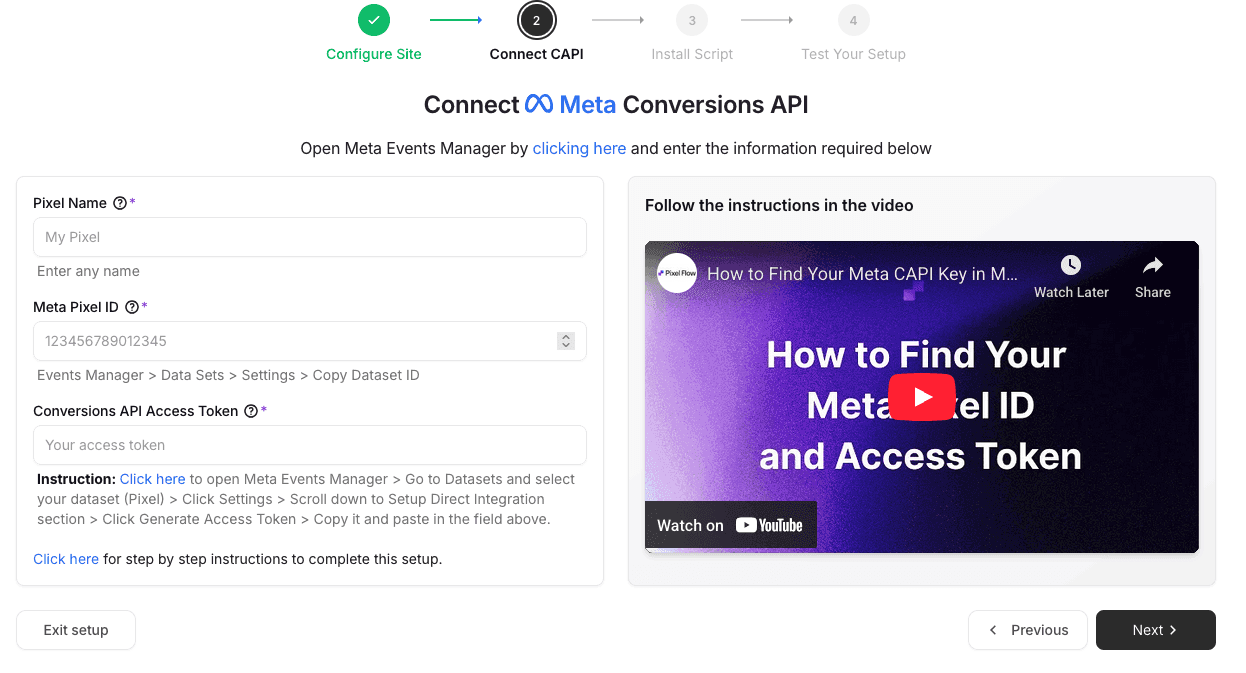
Go to Facebook Events Manager
Select your Pixel/dataset you want to send events to and copy the Dataset ID then paste it into PixelFlow in the “Meta Pixel ID” box
In Events Manager, with your dataset selected, click Settings and scroll down to Conversions API
Choose “Set up with Dataset Quality API”
Click Generate Access Token
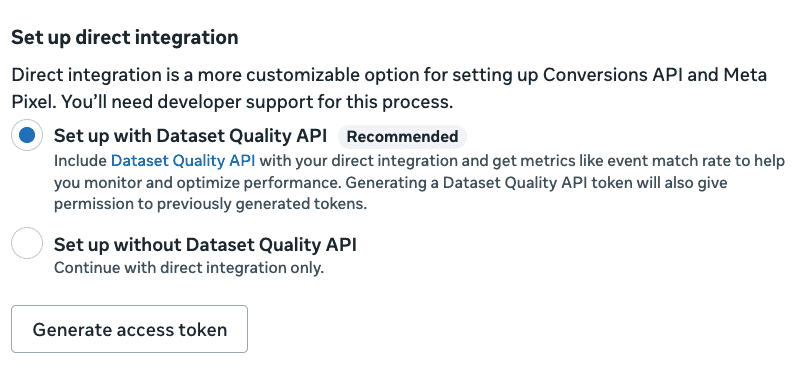
Copy the access token and paste it into the Conversions API Access Token box in PixelFlow then press Next
Security note: Keep this token private. It gives access to send data to your Pixel.
Step 4: Install PixelFlow on Your Squarespace Site
Now you’ll add PixelFlow’s tracking script to your Squarespace site:
Copy the tracking script provided
Open your Squarespace dashboard
Click on Website → Pages → Custom Code → Code Injection
Paste the script in the Header section (not Footer)
Click Save
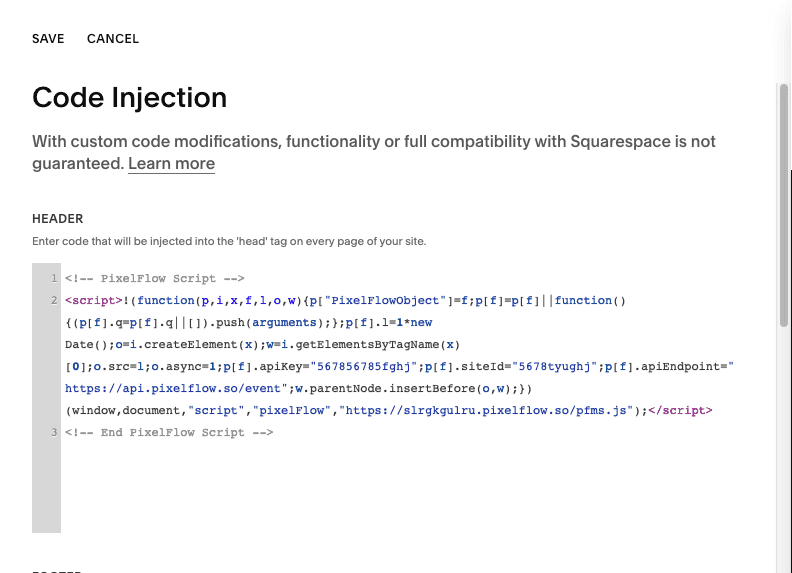
Important: The script must go in the Header section to ensure it loads before page content.
Your Squarespace site will now send events via both the Pixel and Conversions API using PixelFlow. Its automatically tracking:
Page View events
Add to Cart events
Iniatiate Checkout events
Purchase events
To track form submissions, you need to follow the next steps.
Triggering a Facebook Event from Form Submissions on Squarespace
Because of the limitations of Squarespace, the simplest way to track a form submission and trigger an event like “Lead” is as follows.
Open your Squarespace site and duplicate your contact form page
Edit the URL to something like “/thank you” and change the page content to say “Thank you for your message” and save it
Go to the page your form is on and click the Edit button
Click on Post-Submitand choose Redirect
Click Attach Link
Choose the URL of your thank you page and press Save
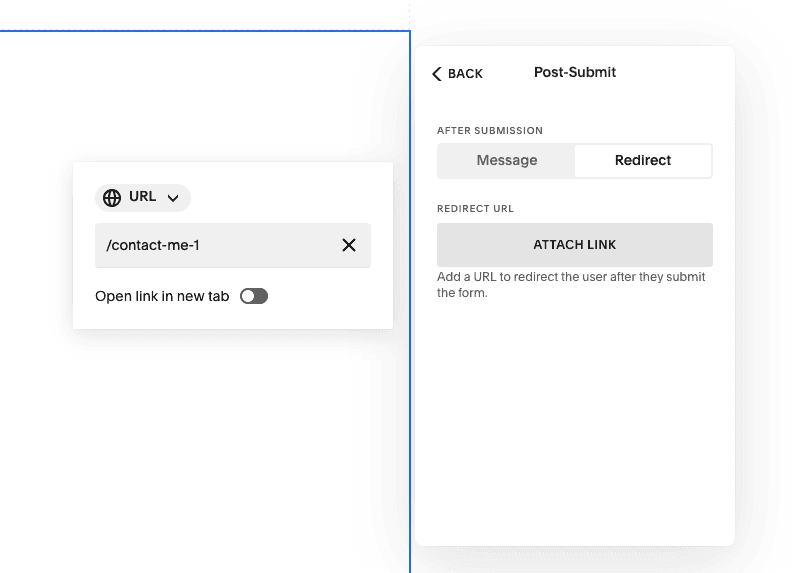
Now your Squarespace form will redirect to a new URL once the user completes the form. This new page should not be linked to from anywhere on your site so the user will only get there if they complete the form.
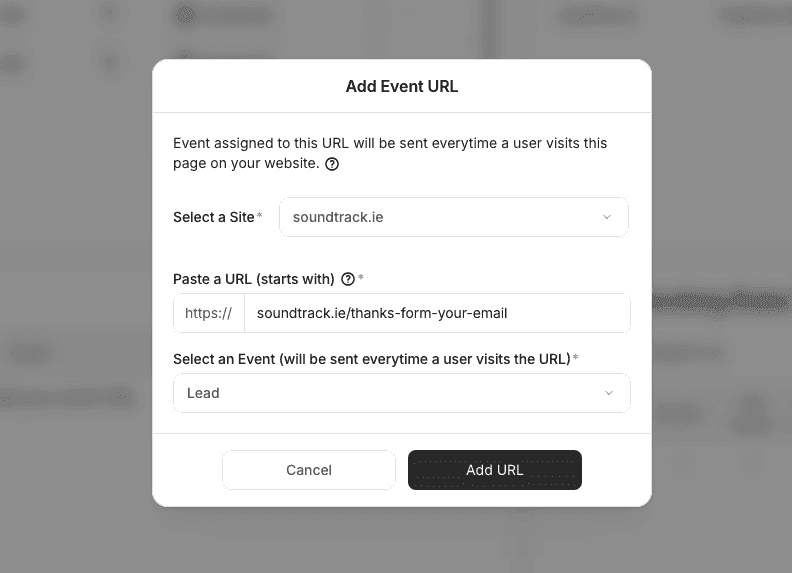
Next you just add the URL of your thank you page as a “trigger” in your PixelFlow dashboard so when a user completes the form, they’ll be redirected to the thank you page and trigger the event.
You can do this in the PixelFlow dashboard by clicking on “Add New” in the Event URLs section and adding the information here:
Testing Your Setup
Before trusting your new tracking, verify it works:
Go to Facebook Events Manager
Select your Pixel
Click Test Events in the left sidebar
Switch to Server tab to see CAPI events
In a new browser window, visit your Squarespace site
Complete a test action:
View a product page
Add something to cart
Complete a test purchase (if possible)
Return to Events Manager and check for events marked Server
If you see server events appearing in real-time, your CAPI setup is working correctly.
Pro tip: Test with an ad blocker enabled to confirm CAPI tracks conversions even when the Pixel is blocked.
Monitor Event Match Quality
Event Match Quality (EMQ) determines how well Facebook can match your events to user profiles:
In Events Manager, go to Overview
Find Event Match Quality in the data quality section
Check your score for server events
Target Good (7.0+) or Great (8.0+) ratings
Higher EMQ = better attribution and ad optimization.
PixelFlow automatically optimizes EMQ by including customer parameters like email, phone, and name when available from checkout data. Learn more about how Facebook generates Event Match Quality scores.
Method 2: Manual CAPI Setup via Custom Code (Advanced)
If you prefer not to use third-party tools like PixelFlow, you can implement CAPI manually. However, this requires significant technical knowledge.
Requirements:
Understanding of APIs and HTTP requests
Server or cloud function setup (Squarespace doesn’t provide server-side access)
Ability to write custom JavaScript
Knowledge of Squarespace’s Commerce APIs
High-Level Process:
Set up a server endpoint (AWS Lambda, Google Cloud Functions, Cloudflare Workers)
Create custom JavaScript to capture Squarespace Commerce events
Send event data to your server endpoint
Forward formatted events to Facebook Conversions API
Implement deduplication logic
Add error handling and monitoring
Reality check: This approach takes days or weeks to implement and requires ongoing maintenance. For most Squarespace users, PixelFlow’s no-code solution is faster, more reliable, and easier to maintain.
Troubleshooting Common Squarespace CAPI Issues
Events Not Appearing in Test Events
Problem: You’ve installed CAPI but don’t see server events in Facebook Events Manager.
Solutions:
Verify the tracking script is in the Header section (not Footer)
Check that your access token is correct and active
Confirm you’ve saved changes in Squarespace Code Injection
Clear browser cache and test again
Check PixelFlow dashboard for connection errors
Wait 5-10 minutes (events can have slight delay)
Purchase Events Missing or Incomplete
Problem: Purchase events fire but don’t include transaction value or product details.
Solutions:
Verify you’re on Squarespace Business or Commerce plan (required for full e-commerce data)
Check that dynamic values are enabled in PixelFlow
Confirm purchase confirmation page is triggering the event
Test with a real transaction (test mode can have limited data)
Check Squarespace Commerce settings are properly configured
Low Event Match Quality Score
Problem: EMQ score is below 7.0 (rated “Poor” or “OK”).
Solutions:
Ensure customer email is captured at checkout
Enable automatic hashing of customer information
Include phone numbers if collected during checkout
Verify IP address and user agent are being sent
Check that FBC and FBP cookies are included in event data
Conversions Counted Twice
Problem: Same purchase appears to be tracked twice in Facebook reporting.
Solutions:
Enable event deduplication in PixelFlow settings
Verify event IDs match between Pixel and CAPI
Check that event names are identical (case-sensitive: “Purchase” not “purchase”)
Ensure both events fire within 5 seconds of each other
Review your Squarespace Code Injection for duplicate Pixel code (PixelFlow already loads your Pixel alongside the CAPI)
CAPI Working But Ads Not Improving
Problem: Events track correctly but ad performance hasn’t improved.
Solutions:
Allow 24-48 hours for Facebook’s algorithm to incorporate new data
Verify you’re tracking valuable events (purchases, not just page views)
Check that event values are formatted correctly (numbers, proper currency)
Ensure you have sufficient conversion volume (50+ per week minimum)
Review your ad targeting and creative (tracking alone won’t fix bad ads)
Squarespace-Specific Best Practices
Use CAPI + Pixel Together, Always
Never disable your Facebook Pixel when adding CAPI. Run both simultaneously for maximum tracking coverage. Facebook’s built-in deduplication ensures accurate counting.
Track the Complete Purchase Journey
Don’t only track purchases. Track the full path:
PageView → ViewContent → AddToCart → InitiateCheckout → Purchase
This gives Facebook rich optimization signals and better understanding of customer behavior patterns.
Capture Customer Data at Checkout
Squarespace Commerce collects customer emails, names, and phone numbers at checkout. Make sure CAPI includes this data (hashed) for maximum Event Match Quality.
PixelFlow automatically handles this if you enable customer information parameters.
Test After Squarespace Updates
If Squarespace updates your site template or you change themes, test your tracking afterward. Template changes can sometimes affect how events fire.
Monitor Performance Weekly
Check Event Match Quality and total event volume weekly. If you notice drops, investigate immediately - tracking issues compound quickly.
Connect Squarespace to Acuity Scheduling
If you use Acuity Scheduling (owned by Squarespace), track appointment bookings as Lead or Schedule events. This captures high-value conversions for service businesses.
Why PixelFlow is Perfect for Squarespace + CAPI
While several methods exist for implementing Conversions API, PixelFlow is built specifically for no-code platforms like Squarespace:
✅ No coding required - Simple script installation via Code Injection ✅ Automatic Squarespace Commerce integration - Pulls transaction data automatically ✅ Event deduplication built-in - Prevents double-counting ✅ Optimized Event Match Quality - Includes customer parameters automatically ✅ Real-time event testing - Verify tracking instantly ✅ Form submission tracking - Automatically captures Squarespace form fills as Lead events ✅ GDPR & privacy compliant - Respects user consent preferences
For Squarespace users who want bulletproof Facebook ad tracking without technical headaches, PixelFlow is the fastest path to implementation.
Next Steps: Maximize Your Facebook Ad Performance
Congratulations! You’ve now set up Facebook Conversions API on your Squarespace site. You’re tracking conversions more accurately than most advertisers.
But accurate tracking is just the beginning. Here’s what to do next:
1. Verify your Event Match Quality is 7.0+ - Higher scores = better optimization
2. Confirm all critical events are tracking - Test purchases, leads, and key actions
3. Monitor conversion volume in Events Manager - You should see 15-30% more conversions within 48 hours
4. Let Facebook re-optimize - Give campaigns 3-7 days to adjust to better data
5. Adjust your bidding strategy - With accurate data, you can be more aggressive
Want to dive deeper? Check out these guides:
What is Facebook Conversions API? - Foundational knowledge
Server-Side Tracking vs Pixel - Compare tracking methods
How Facebook Generates Event Match Quality Scores - Optimize your EMQ
7 Meta Events You Should Be Tracking - Event strategy
Why Facebook Ads Underreport Conversions - Understand attribution issues
How to Set Up CAPI in Webflow - Webflow setup guide
Ready to set up server-side tracking on your Squarespace store? Get started with PixelFlow and start tracking every conversion in minutes.